Content
14 October 2026
351
13 min
5.00
Yespo Updates for September 2026

Natalie Ustymenko
Content
In September, we added an accessibility check for emails, gave In-App messages room for more, and made workflows easier to work on as a team. Other updates cover gamified widgets, open tracking, and subscription payments.
You can find the August 2026 updates in the previous digest; the current SDK versions are in the release notes.
Email Editor
Email Accessibility Checker
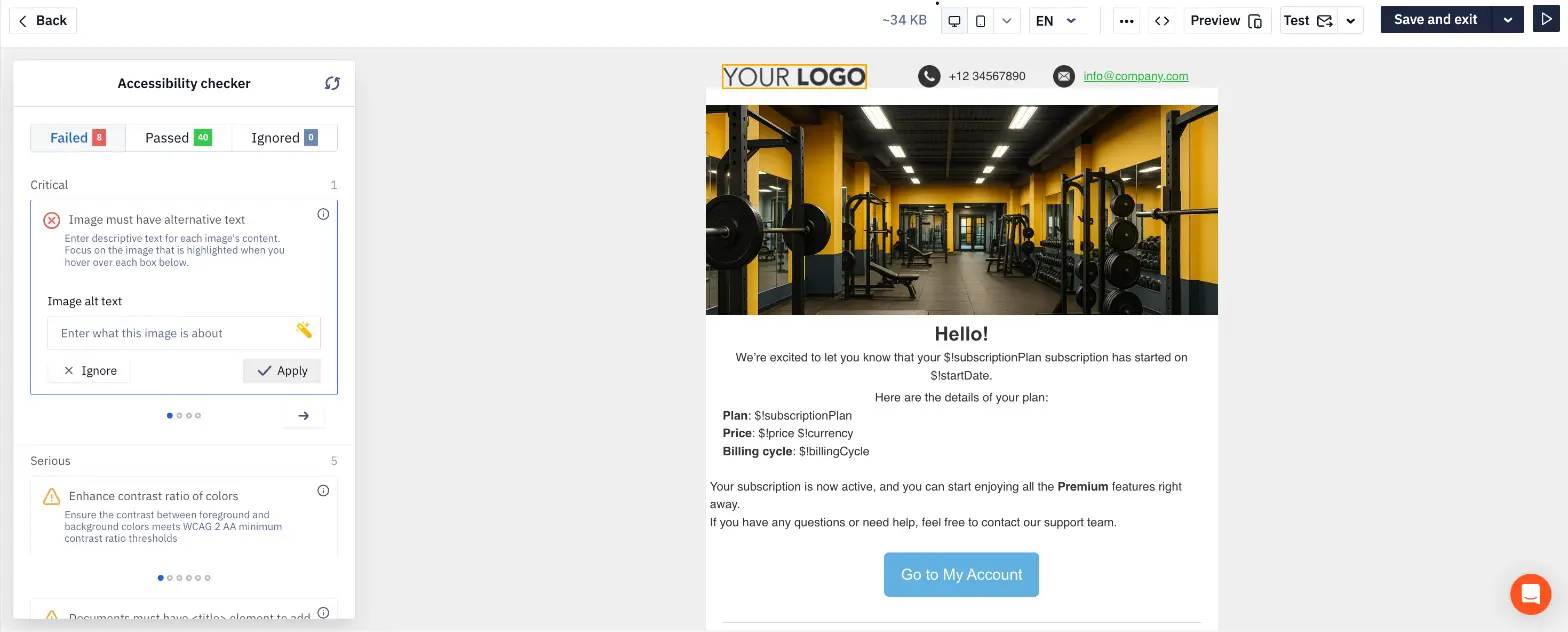
Accessibility is how easily people with visual impairments, color blindness, or cognitive differences can "read" an email with specialized software. For example, it gets harder when an image has no text description or a button just says "Here" with no specifics.
You can now find such weak spots before sending and fix them. To run the check, open the email in the editor or on the preview screen, click the arrow next to the Test button, and select Run accessibility test. Fix each issue manually, apply the suggested fix, or ignore it if it doesn't apply to your email. For image alt text, AI can generate a description.
Learn more about the accessibility checker
Turn Off Open Tracking in Settings
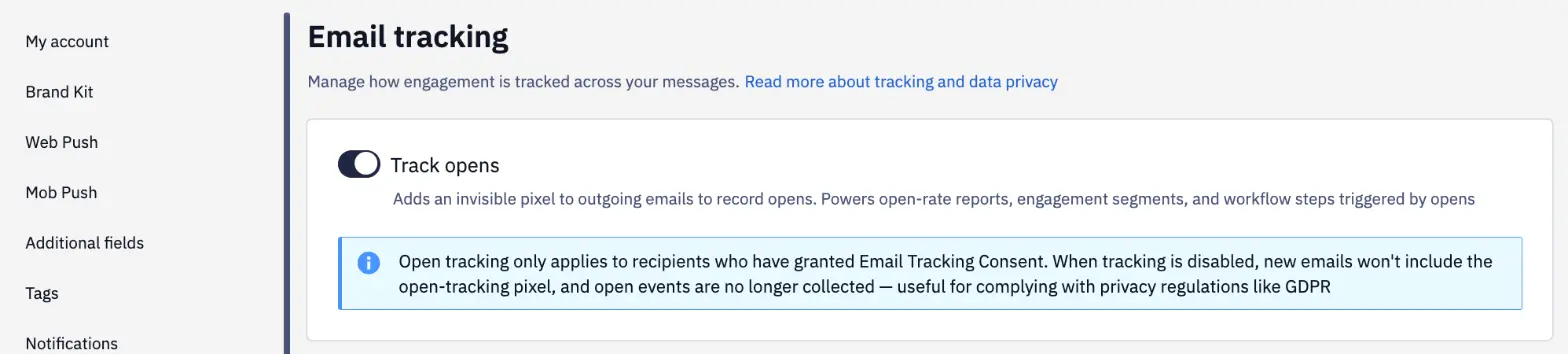
Yespo counts email opens with a hidden tracking pixel. Some companies can't use it because of their privacy policy or GDPR requirements. In Settings → Email tracking, you can control this pixel: turn off the Track opens toggle, and the pixel will no longer be added to emails; opens, along with the metrics based on them, won't be counted.
Protection Against Accidental Unsubscribes by Bots
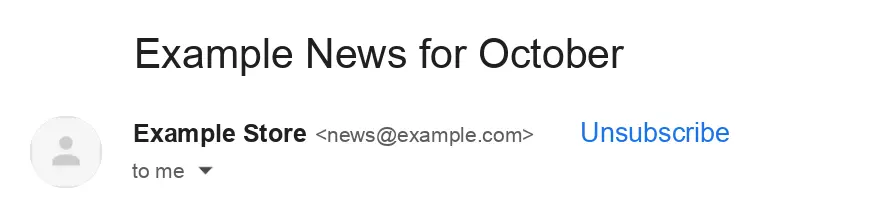
Gmail, Outlook, and other mailbox providers show an unsubscribe button next to the sender's address. It relies on the List-Unsubscribe header that Yespo adds to every email and appears only in emails that pass domain authentication. Some anti-spam bots check links in email headers with a plain visit (a GET request), so contacts were unsubscribed without clicking anything.
Opening such a link now shows a page with a confirmation button, and the contact is unsubscribed only after clicking it. One-click unsubscribe from the mail client interface (a POST request) works as before.
Learn more about one-click unsubscribe headers
Currency Symbol and Format in the Price Block
The currency symbol and its position (before or after the price) are now set once for the whole account in Settings → My account. The Price block in product cards picks up this format automatically, so prices look the same in all your emails. In the email itself, you can additionally adjust the currency font size and spacing.
Blocks already added to emails keep the previous format until you update each of them.

Learn more about the Price block
Quick Selection of Test Recipients
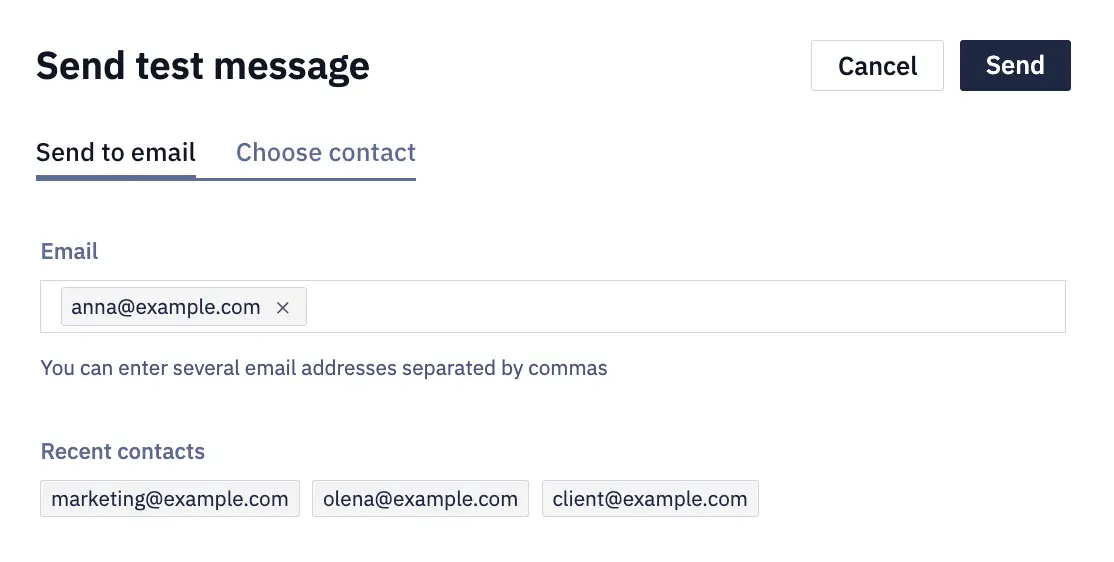
The first test-sending screen shows up to 10 addresses you send tests to most often. Add one with a click — handy when an email goes to colleagues first and then to a client for approval.
Learn more about testing an email
Clearer Link Settings
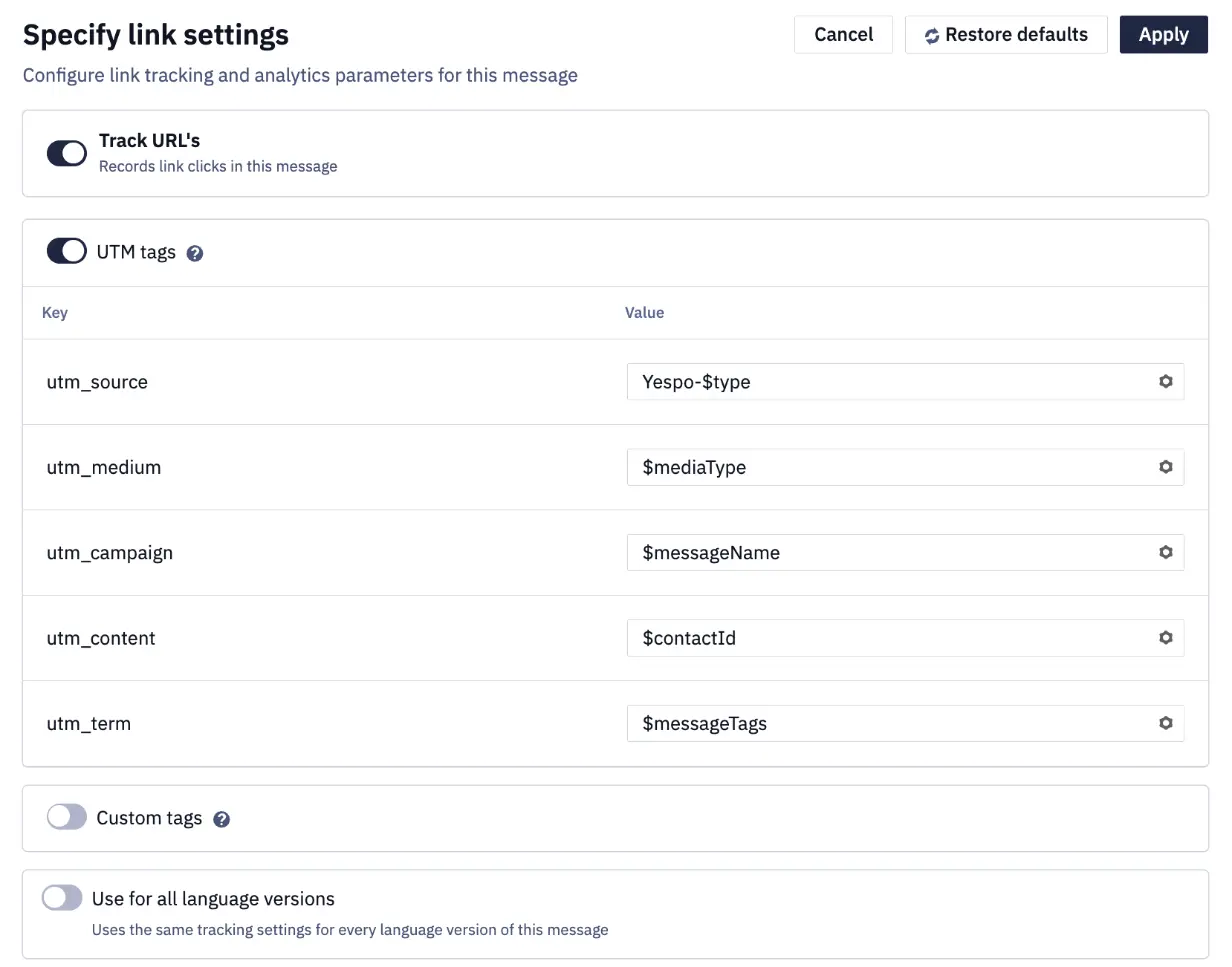
The link settings panel for a message has been regrouped: the Track URL's switch turns on click tracking for this message, and next to it you configure UTM tags, Custom tags for another analytics system, and Use for all language versions.
Learn more about UTM tag settings
Module Details in the Tooltip
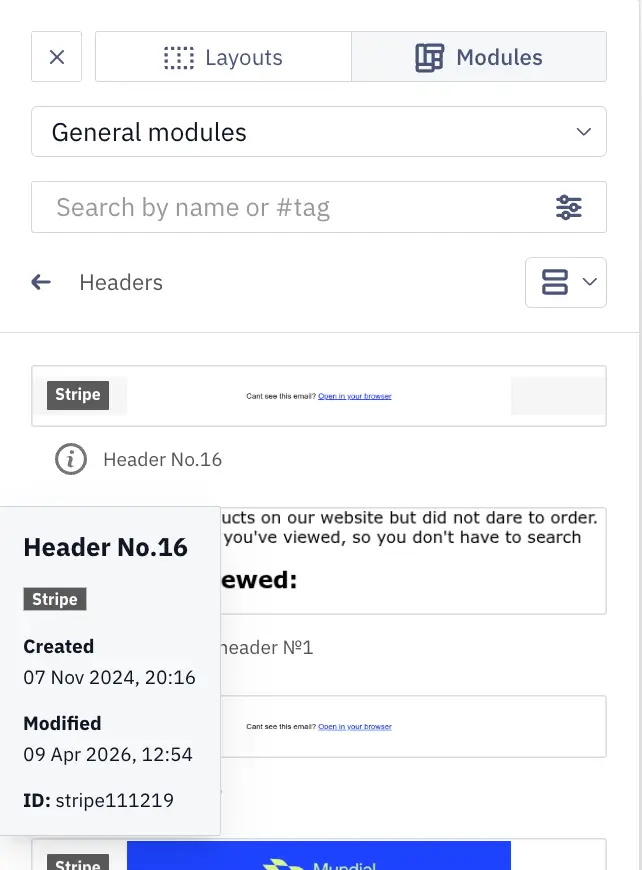
A module's tooltip in the library now shows its ID, creation date, and last modified date.
Learn more about the module library
Deleting a Sender with a Replacement
If an Email, SMS, or Viber sender is used in messages, the system warns you on deletion and offers to pick another sender so your campaigns don't stop.
Learn more about deleting a sender
In-App Messages
Multi-Page In-App Messages
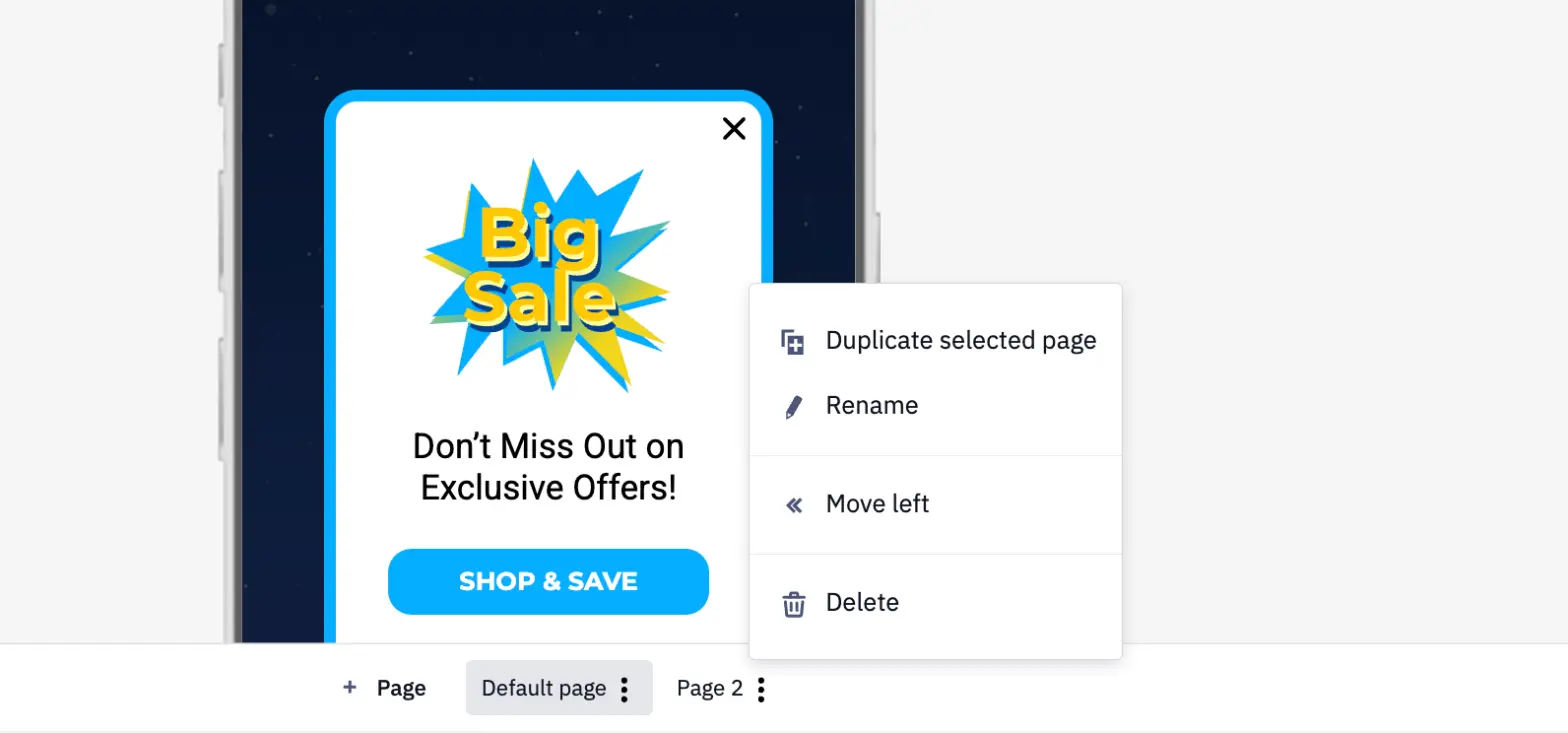
An In-App message appears inside a mobile app while the user is using it. One In-App message can now contain up to 20 pages: for example, a multi-step onboarding, a short survey, or a catalog of offers.
To add a page, click + Page — the current page is duplicated right after itself. Use the page menu to rename, move, or delete a page. Set up navigation in the Action on click settings of a button, an image, or the whole page: select Next page or Previous page.
Learn more about In-App message pages
Countdown Timer and Social Icons in In-App
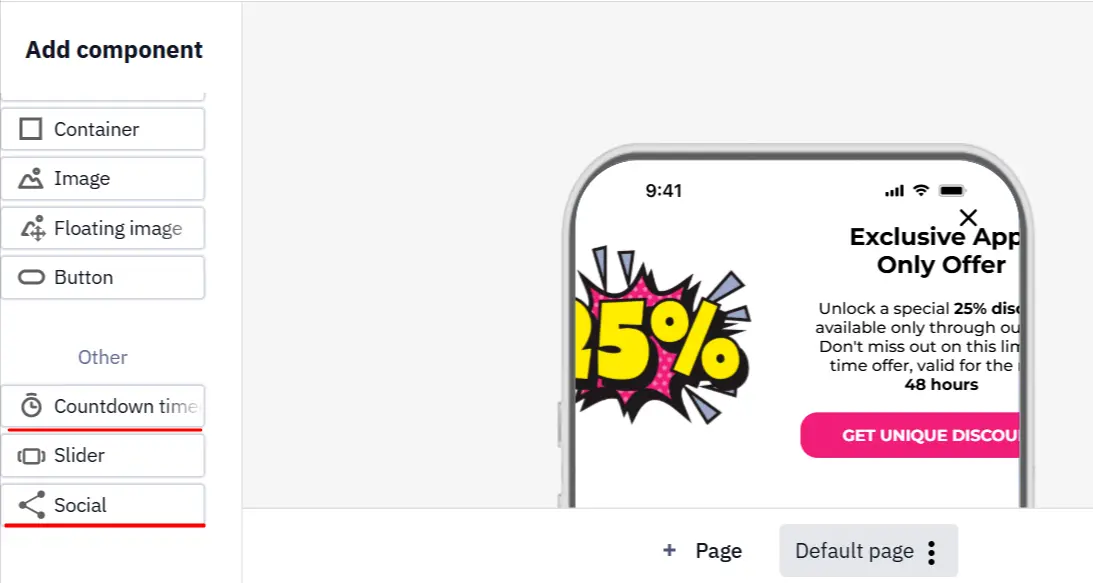
The In-App editor gets two components:
- Countdown timer shows how much time is left until a promotion ends. The Time settings window with the format and end date opens as soon as you add it.
- Social adds a row of icons linking to your pages; the platforms and icon size are configurable.
Learn more about In-App components
Workflows
Notes in Workflows
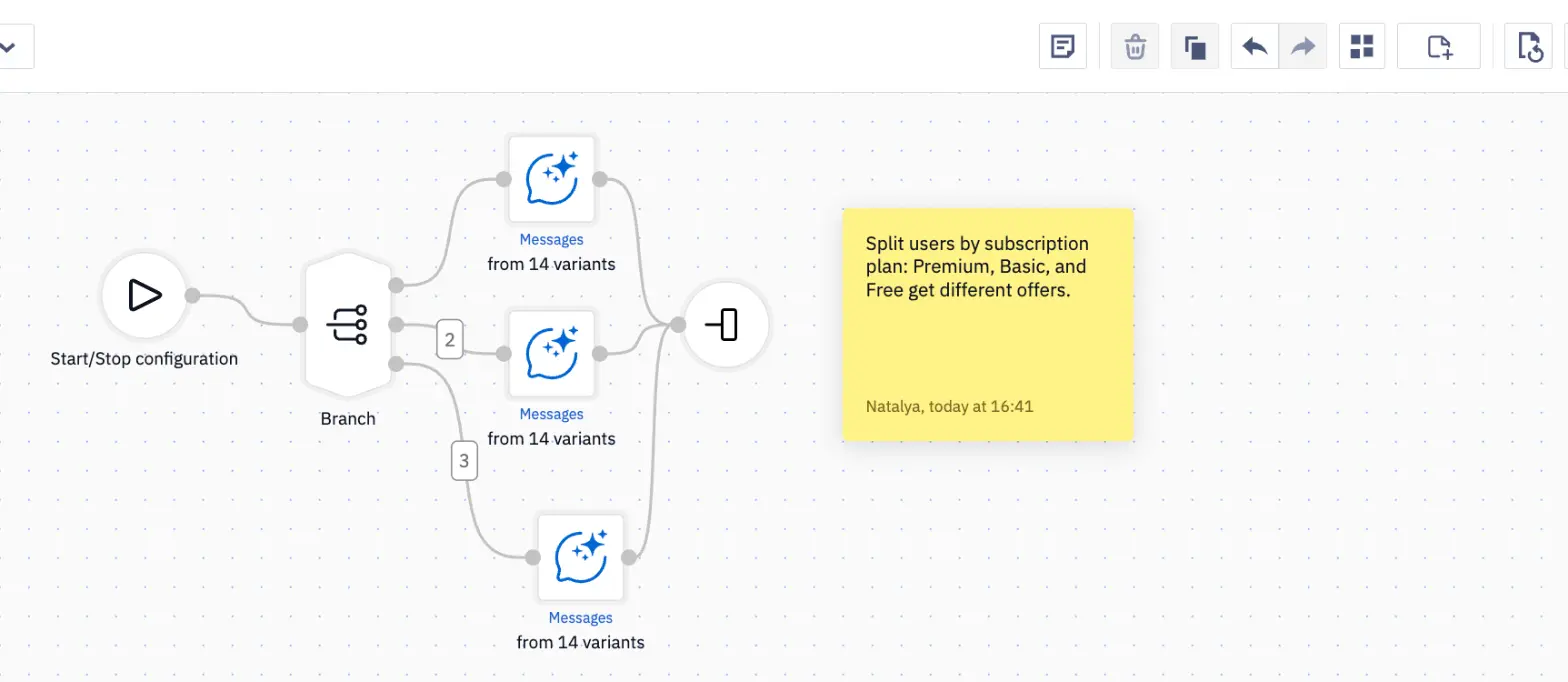
A large workflow is hard to explain to a colleague who sees it for the first time. You can now leave a note next to the relevant part: click the Add sticky note icon on the workflow editor's top panel and type the text. Drag a note anywhere on the canvas, change its color, or delete it.
Notes are saved with the workflow and kept when you copy it, but they don't affect its execution or the pre-activation check.
Learn more about workflow notes
Compare an External Event With the Start Event Parameter
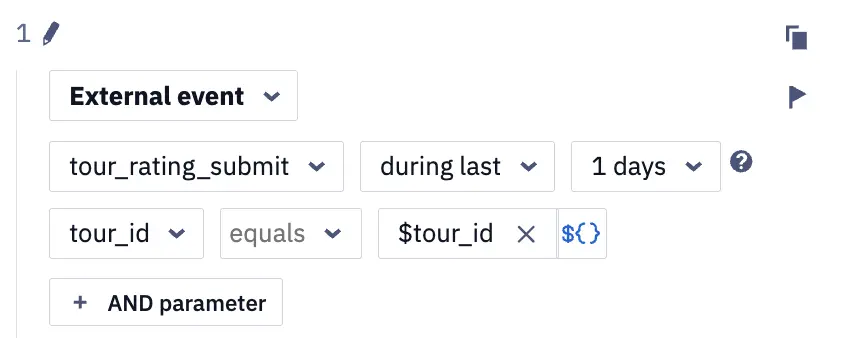
The Branch block sends a contact down different workflow branches depending on the rules you set. In an External event rule, an event parameter can now be compared not only with a fixed value but also with the value of a parameter from the event that started the workflow: click ${} in the value field and enter the parameter name.
For example, the tour_rating_show event starts a workflow with tour_id=123. The rule checks whether the contact sent tour_rating_submit for that exact tour. Each launch checks the action for a specific object, even if the contact interacts with many, and you don't need to store the IDs in additional fields.
Learn more about comparing with the start event parameter
Date Checks in the Branch Block
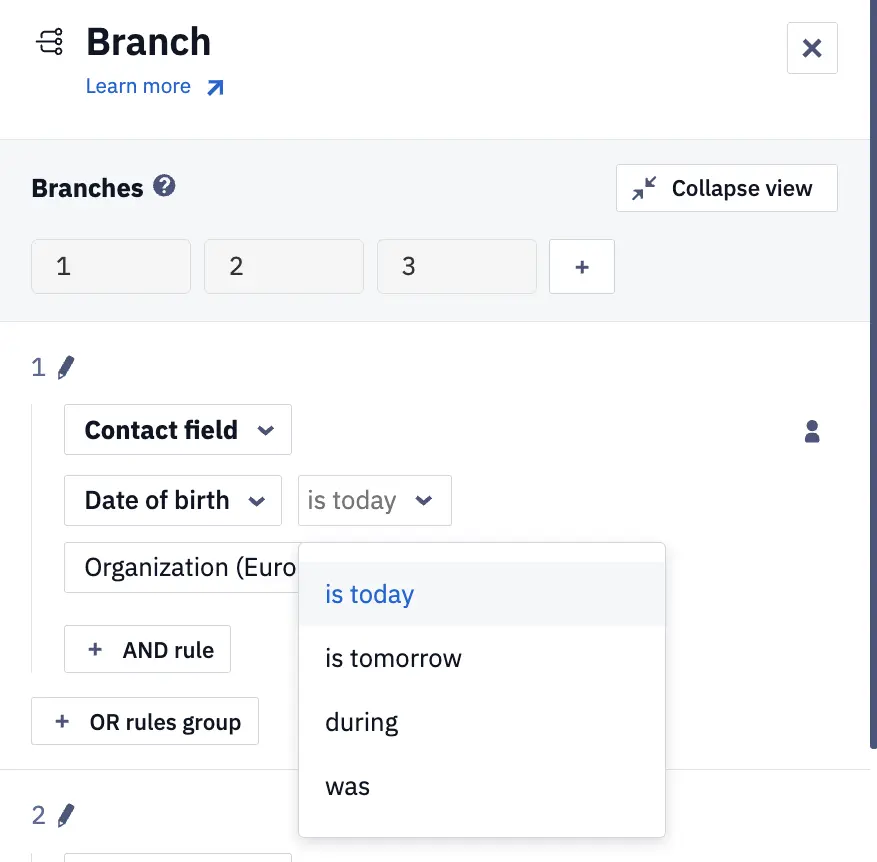
For event parameters and contact fields of the Date or Date with time type, the Branch block now offers the is today, is tomorrow, during, and was operators. For example, contacts whose order is delivered today or tomorrow get a reminder, and the rest follow another branch — no additional fields or workarounds needed.
Wait for a Status in Minutes
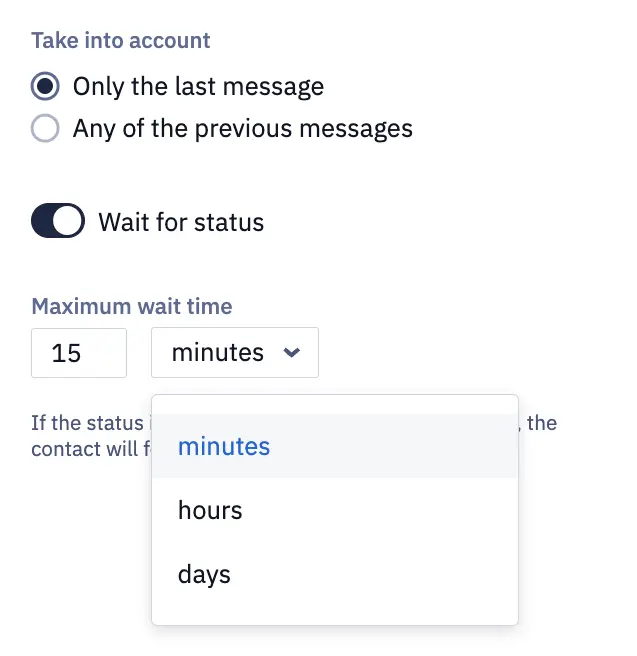
With the Wait for status option enabled, the Sent?, Delivered?, Opened?, and Clicked? blocks hold a contact until the required status appears. The Maximum wait time can now be set in minutes too — for example, send an SMS if an email isn't opened within 15 minutes.
Learn more about waiting for a status update
All Pre-Activation Issues in One Panel
If issues are found when you activate a workflow, the Before activating the workflow panel opens. Fix the errors lists the errors that prevent the workflow from starting, each with an explanation and a button that takes you to the fix. Check warnings lists non-critical issues: you can still activate the workflow at your own discretion.
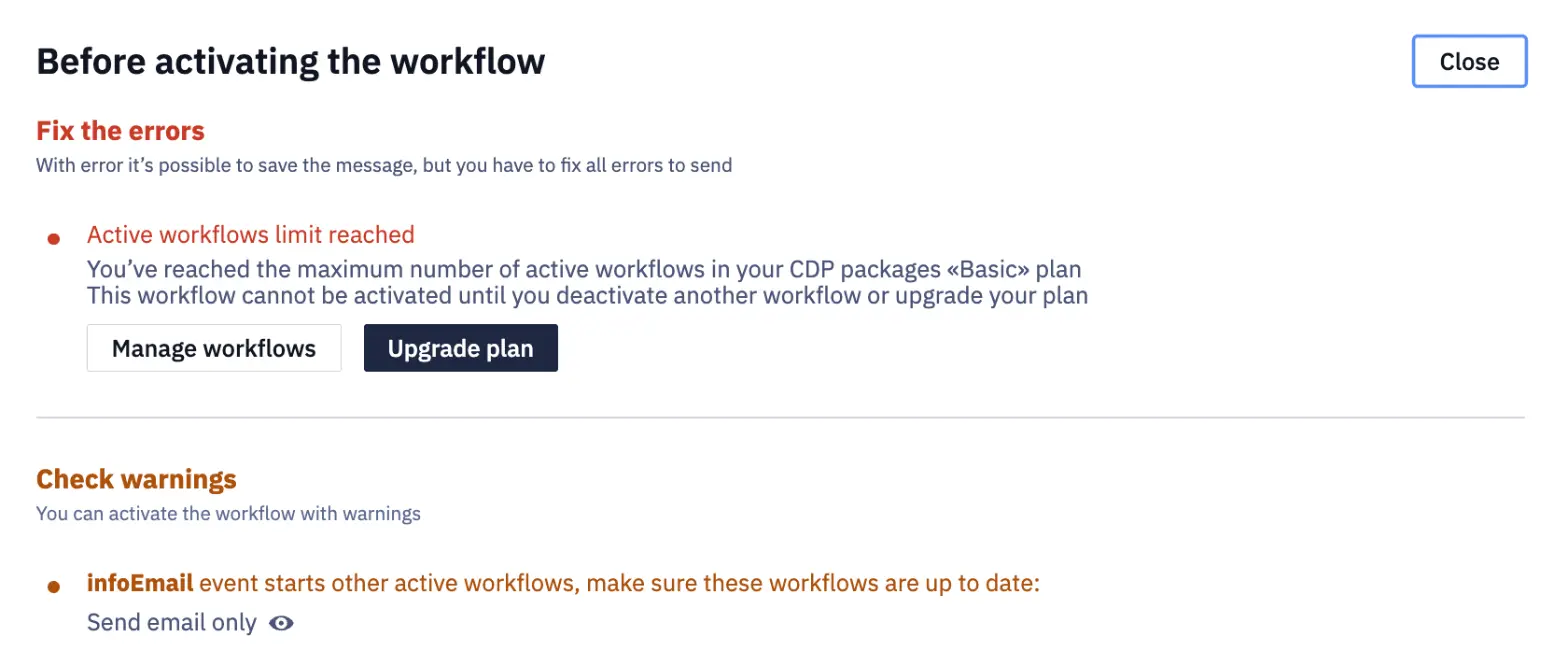
Learn more about checking issues before activation
Messages in Any Channel Right in the Workflow Editor
You can now create or edit a message in any channel without leaving the workflow: App Inbox and Web Push join Email, Mobile Push, SMS, Viber, and Telegram. Create a new message or change the title and text of an existing one right from the sending block — no separate tab needed.
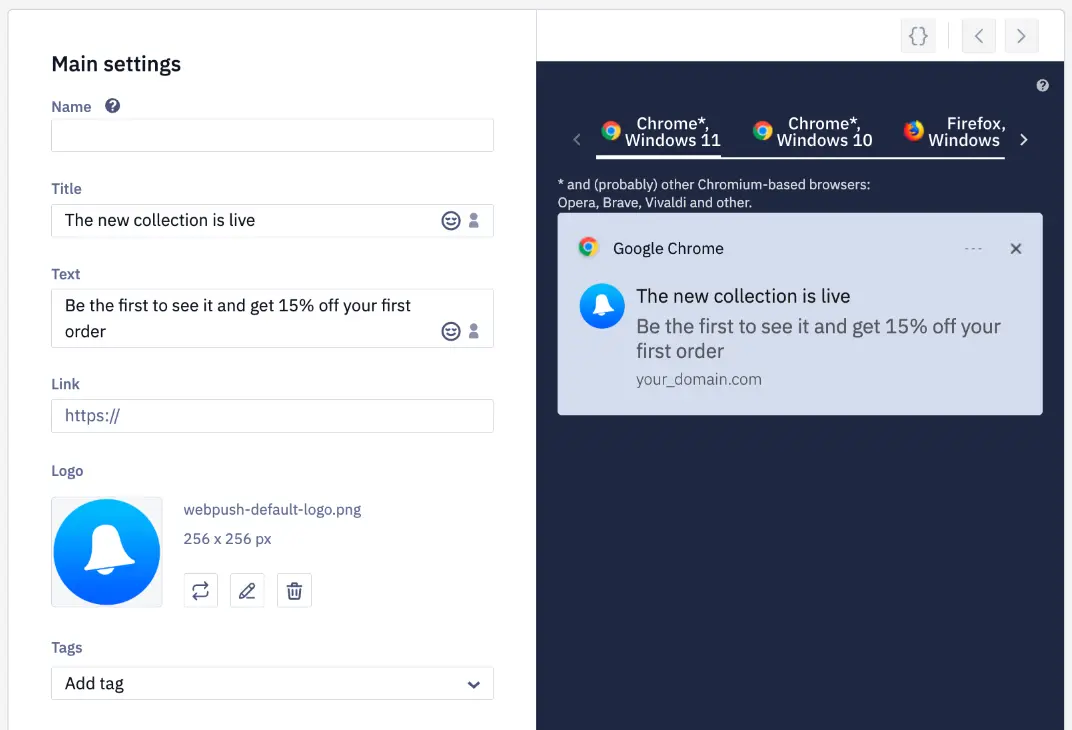
Learn more about creating messages in a workflow
Custom Period in Launch History
Besides the preset periods, you can now select Custom period and specify the start and end date and time. The filter works by launch start date.

Learn more about searching and filtering launches
Faster Work with Large Workflows
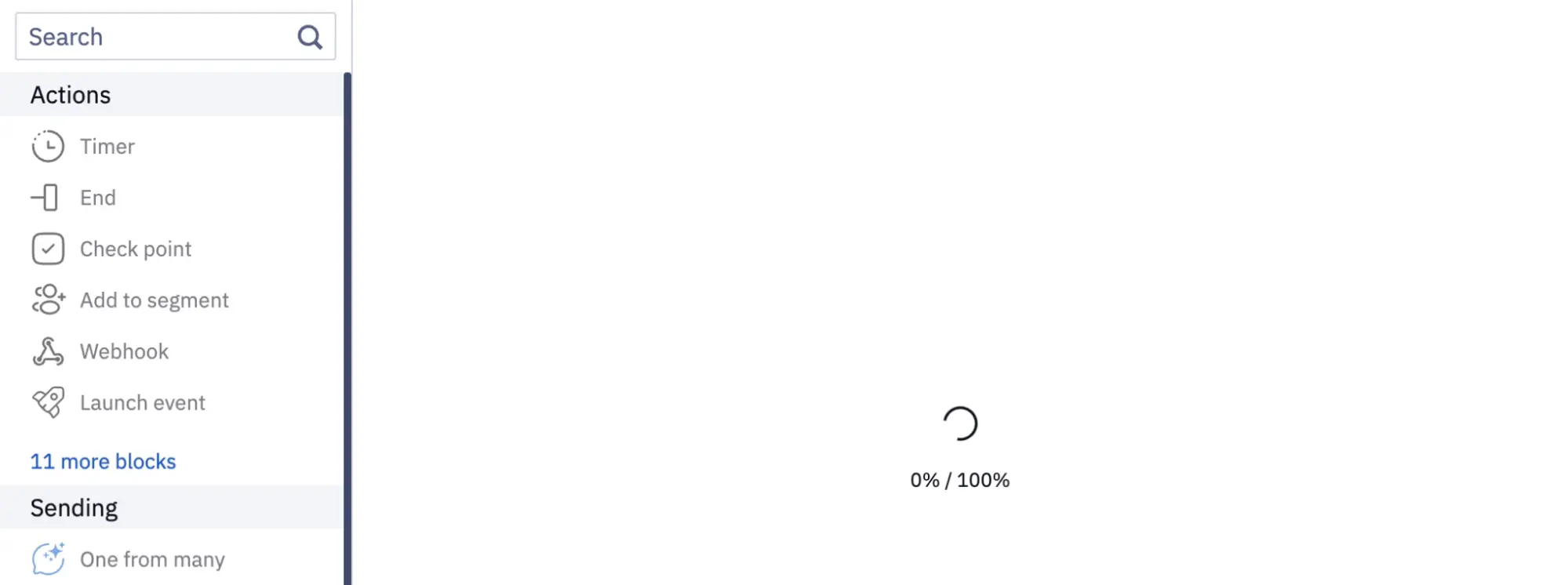
Large workflows load gradually with a progress indicator and don't block the browser, even while the AI assistant builds a workflow.
Error for an Unknown Contact
If an event carries an externalCustomerId that doesn't belong to any contact, the launch is no longer marked successful. In launch history, it appears on the With errors tab with the note Contact not found by externalCustomerId. The action was not executed.
Learn more about launch errors
Widgets
A Separate Result Page for Each Prize
A gamified widget is a popup with a game, such as a spin-the-wheel or a scratch card, where a site visitor wins a prize in exchange for their contact details. You can now pick, for each prize in the reward pool, the page that opens after winning: a page with a promo code for a discount, or a page with redemption terms for a gift. Select it in the Go to page after winning field; by default, Next page opens, as before.
The Run the game button action is now available for all game components, not just Spin the wheel and Slot Machine. In its settings, you can select the Existing and Error pages, just like for a regular form submission.
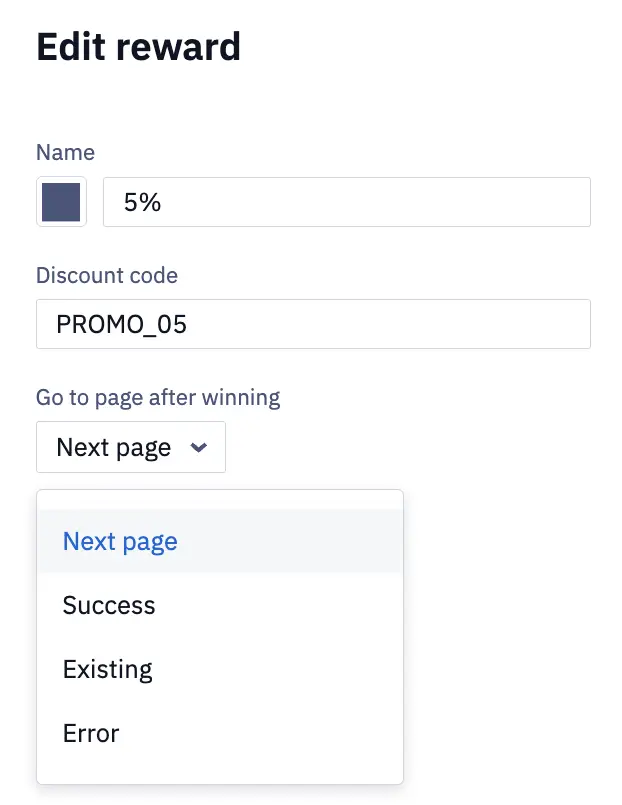
Learn more about reward result pages
Contact Fields on Several Widget Pages
The Email, Phone, First Name, and Last Name fields can now be added to different pages of one widget. For example, in an NPS survey, promoters, passives, and detractors see different pages, and each needs an Email field. A field can't be added twice to the same page — the editor won't let you publish such a widget.
Learn more about configuring widget branches
Separate Text Styling on Mobile
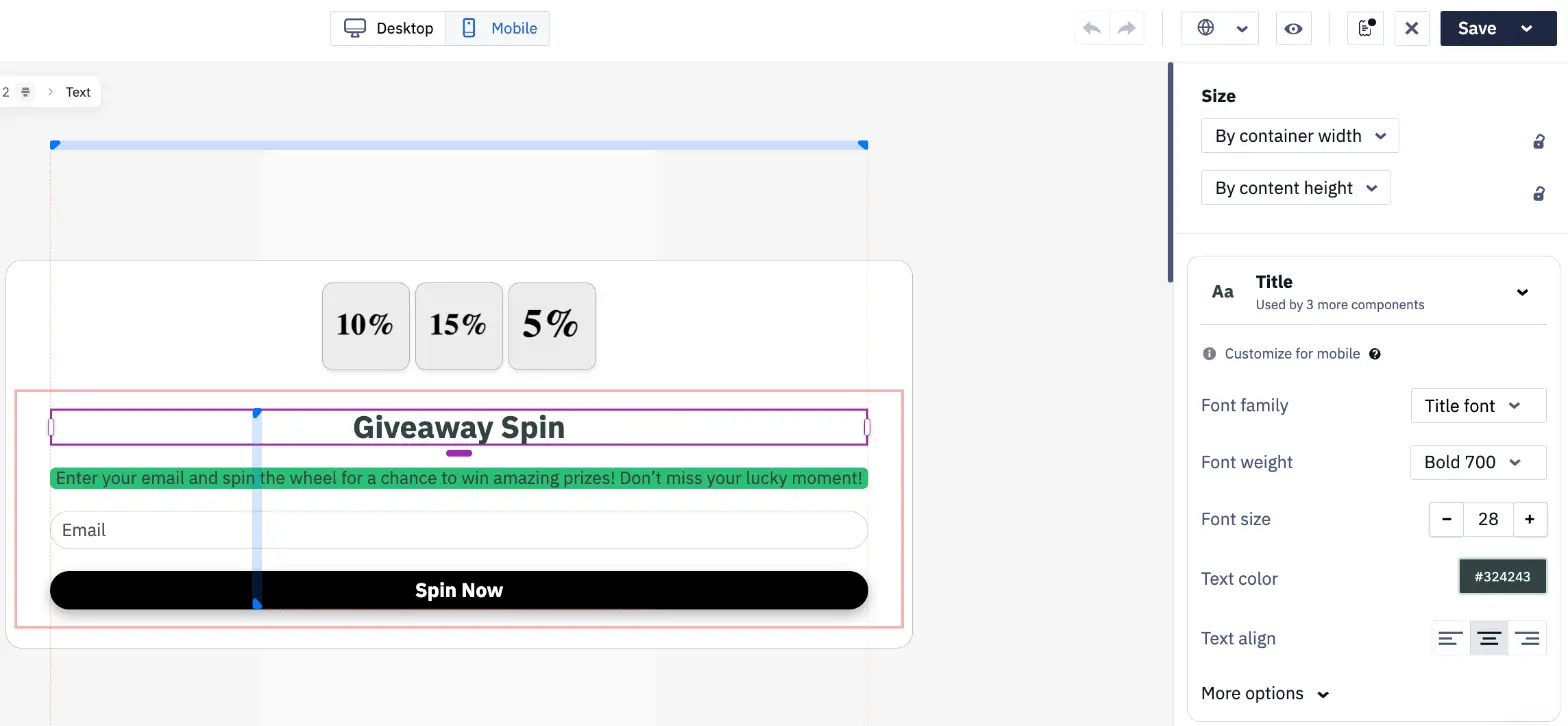
To make text look different on phones, you used to create a separate text style for the mobile version. Now switch to the widget's mobile version, select the text, and change the properties you need, such as font size or color. Changed properties stop syncing with desktop; the Reset button restores the desktop settings. For existing widgets with different styles, the editor shows a Different style on mobile notification.
Learn more about widget text settings
Fractional Win Chance
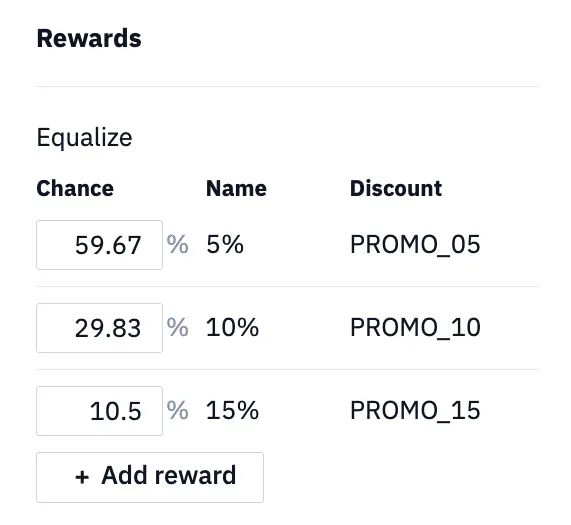
A prize's win chance can be a fractional number, with a minimum of 0.01%. The reward pool settings are now at the top of the right panel for game and promo code components, and a prize name can always be any text.
Learn more about the reward pool
Text on the Spin-the-Wheel
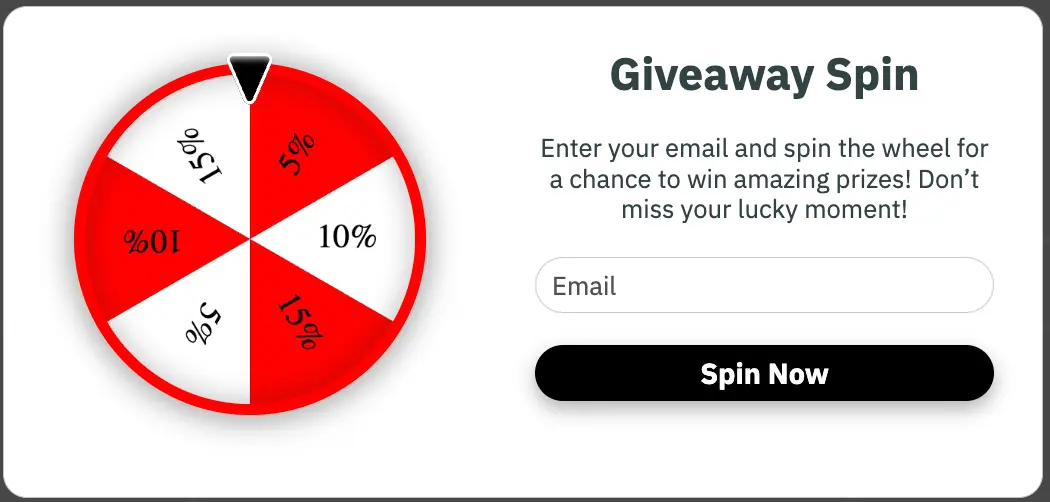
Text is positioned automatically within each sector, and its color switches between black and white depending on the sector color. The winning-sector pointer is always black with a white outline.
Other Widget Improvements
- Proportional resizing. Drag a component's corner to change its width and height together — especially handy for images.
Learn more about editing widget elements
- No accidental popup closing. A popup closes on a backdrop click only when both the press and release happen on the backdrop, so selecting text in a field or scratching a scratch card no longer closes it. While a game is active, clicking the backdrop doesn't close the widget; the Esc key and the close button always work.
- More accurate view counting. A widget view is now recorded when at least 10% of the widget appears on screen, not when it's added to the page. As a result, the number of views in statistics may go down and the conversion rate up.
Learn more about widget analytics
API and Integrations
SMS Part Count in Webhooks and the API
A long SMS is split into several parts, and each is billed separately. The smsParts field — the number of parts an SMS was split into — is now passed in contact activities: in webhooks and in the response of the Get contacts activity method. This helps you calculate SMS costs more accurately in your own analytics.
Learn more about webhook parameters
Event Source: SDK or API
In the event window, the Source field now shows SDK for events received via the mobile SDK and API for events sent through the API. An API event keeps the API label even if it carries SDK-specific parameters such as appVersion or deviceCategory. This makes it easier to see where an event came from and to find an integration error.
Learn more about event history
Faster Access to Cartum Integration Settings
In the integrations list, Cartum now has an Edit button, and the integration name is highlighted on hover.
Learn more about the Cartum integration
Plans
A Grace Period When a Subscription Payment Fails
If an automatic subscription renewal fails — for example, because there aren't enough funds on the card — a 5-day grace period begins. The subscription stays active, and all its features remain available. The system retries the payment once every 24 hours, up to five times, and after you top up your balance, the subscription continues with the same dates.
A subscription in the grace period is marked on the Pricing plans page, a notification appears on the home page, and you receive emails when the period starts, on each payment retry, and when it ends.
Learn more about the grace period
Message Limit Notifications
When 80% and 100% of the daily or monthly message limit included in your subscription is used, the system warns you in advance: on the home page, when you launch a campaign, when you activate a workflow that uses this channel, and by email. This way, a limit doesn't run out unexpectedly in the middle of an important campaign.